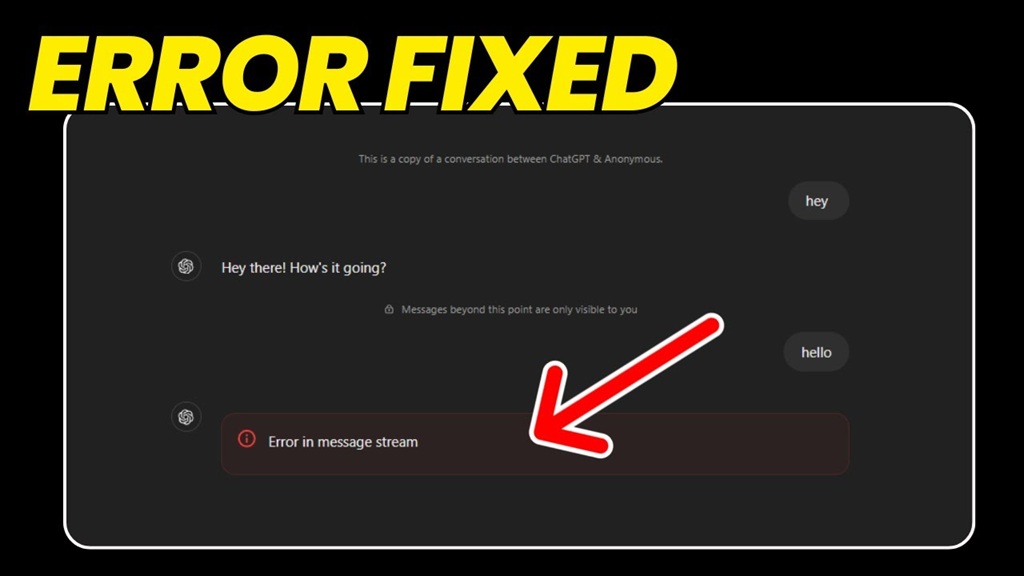
What Does "Error in Message Stream" Mean in ChatGPT?
The Error in Message Stream message typically appears when ChatGPT loses connection with OpenAI servers while generating a response. It can occur because of temporary server outages, unstable internet connections, browser cache corruption, overloaded sessions, or conflicting browser extensions. In most cases, the issue can be resolved within a few minutes using simple troubleshooting steps.
Quick Diagnostic Table
| Problem | Likelihood | Difficulty | Solution |
|---|---|---|---|
| OpenAI Server Outage | Very High | Easy | Check server status |
| Browser Cache Issues | High | Easy | Clear cache & cookies |
| Network Instability | High | Easy | Reconnect internet |
| Extension Conflict | Medium | Medium | Disable extensions |
| Session Corruption | Medium | Easy | Logout and login again |
How to Fix Error in Message Stream ChatGPT
1. Check OpenAI Server Status
Before changing any settings, verify whether OpenAI is experiencing an outage. If the servers are overloaded or undergoing maintenance, the error may disappear automatically once service is restored.
2. Refresh the ChatGPT Page
A simple page refresh often restores the connection between your browser and OpenAI servers. Press Ctrl + F5 for a hard refresh.
3. Clear Browser Cache and Cookies
Corrupted cached files frequently cause communication errors. Clear your browser cache, cookies, and site data, then restart the browser.
4. Check Your Internet Connection
Slow or unstable internet connections can interrupt message streaming. Restart your router and switch to a more reliable network if possible.
5. Disable VPN and Browser Extensions
Some VPNs, ad blockers, privacy tools, and security extensions interfere with ChatGPT communication channels. Disable them temporarily and test again.
6. Start a New Chat
Long conversations occasionally become unstable. Creating a new conversation often eliminates streaming-related issues.
7. Try Another Browser
Switching to Chrome, Firefox, Edge, or Safari can quickly determine whether the issue is browser-specific.
8. Log Out and Log Back In
Refreshing your account session resolves authentication and connection problems that can trigger message stream errors.
9. Update Your Browser
Older browser versions may not fully support the latest ChatGPT technologies. Install all available browser updates.
10. Reinstall the Browser (Last Resort)
If none of the previous fixes work, reinstalling the browser can eliminate deep configuration issues causing communication failures.
Expert Tips
- Avoid opening multiple ChatGPT tabs simultaneously.
- Keep browser extensions to a minimum.
- Use a stable broadband connection.
- Clear browser cache regularly.
- Monitor server status during peak traffic periods.
Verification: How to Confirm the Fix Worked
After applying the troubleshooting steps, open ChatGPT and submit a simple prompt such as "Hello, how are you?" If the response streams normally without interruption and no error message appears, the issue has been successfully resolved. Test several prompts to ensure the connection remains stable.
ChatGPT Working Again?
Bookmark LogCure for more troubleshooting guides and error fixes.
Visit LogCure